

IMPORTANT
If you are completing CASFA, click here to learn about creating your account and other next steps. You will not follow the instructions on this page.
Once you have created accounts for everyone who will be required to contribute to the FAFSA, you can start the FAFSA application. Either you as the student or your parent can start the FAFSA; however, it’s recommended that the student should start the process. If the student starts the FAFSA, they will invite the parent to add their information to the form. If the parent starts the FAFSA, they will need to include the student’s identifying information, including Social Security Number, so that the form matches to the student’s StudentAid.gov account. No matter who starts the FAFSA, the student and the parent will have to log in separately to complete their own parts of the application.
Before you start:
- Make sure you determine who the contributorsAny person who is required to provide information on the FAFSA and consents to release their Federal Tax Information to Federal Student Aid (this includes the student). Possible contributors (in addition to the student) include biological and adoptive parents, the student’s step-parent, and the student’s spouse. are. Go back to Step 2 for help.
- Make sure all Contributors have their StudentAid.gov accounts created before starting the FAFSA. Go back to Step 3 for help.
- Here is the list of the information you should have ready.
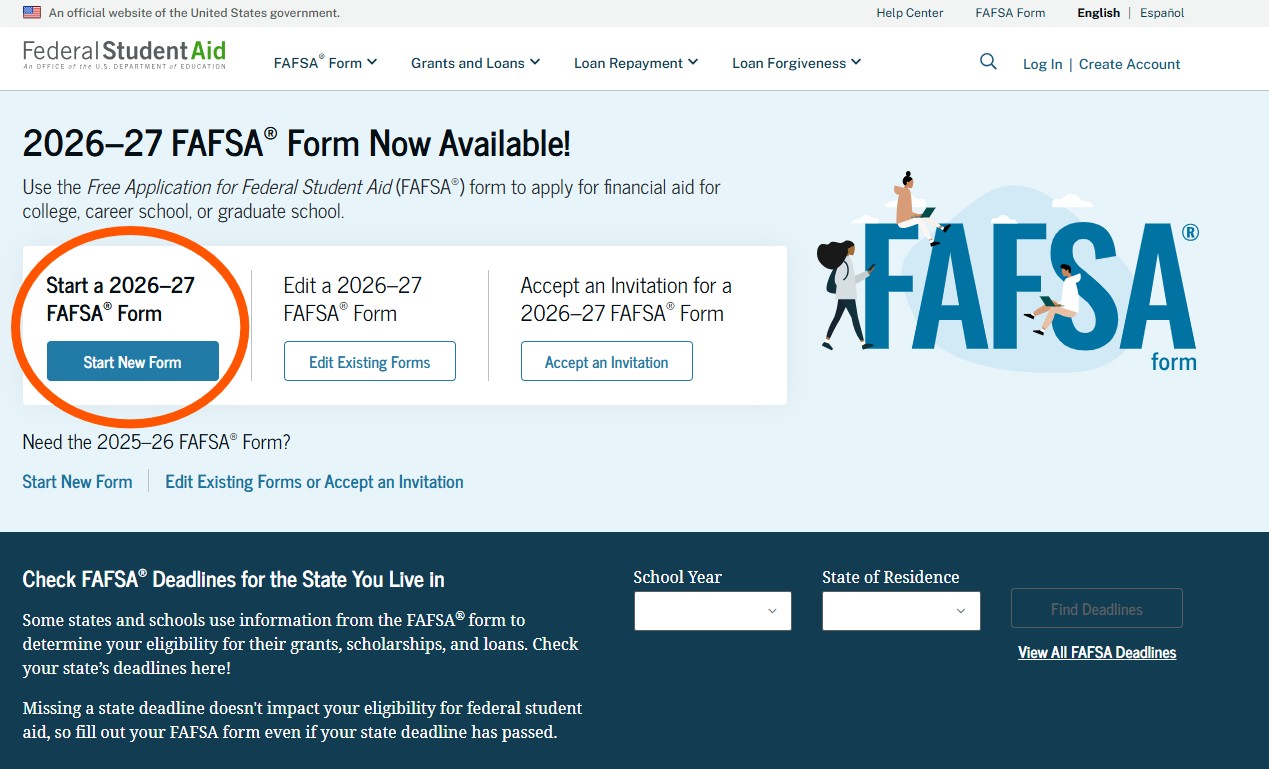
To begin, log into your StudentAid.gov account and navigate to the FAFSA form. Click “Start a 2026-27 FAFSA Form.”
Student Section
You will answer questions about the following topics to complete the student section:
- Personal Circumstances, which includes:
- Mailing Address and State of Legal Residence
- Agreeing (“providing consent”) for the FAFSA to get your tax information from the IRS
- Note: You and all other Contributors MUST provide consent to be eligible for federal aid! To do this, click “Approve.”
- Marital Status
- Dependency questions to determine if you need to provide parent information and living situation
- Invite your parent to complete their portion of the FAFSA
- Note: You will enter your parent’s email address to send the invitation. It doesn’t have to be the same email that they used to create their StudentAid.gov account.
- You can also copy the invitation link to share with your parent if needed to access your FAFSA.
- Demographics
- Financial information
- Select colleges and universities you want your FAFSA sent to
- Electronically sign by logging in and clicking “Sign”
Parent Section
If the student started the FAFSA, the parent will get an email inviting them to add their information. On the parent section, the parent will provide:
- Consent: Like the student, the parent MUST agree (give consent) for their information to be provided to the FAFSA from the IRS for the student to be eligible for federal aid.
- Marital status
- State of Legal Residence (this means the place that your parent(s) consider to be their permanent home; it does not refer to immigration status).
- Finances and government benefits
- Family size – includes:
- The parent
- Parent’s spouse (if they are married or remarried)
- Dependent children (even if they live separately from the family because they are in college) if they live with the parent when they’re not away at college and the parent provides more than half of their support
- Other dependents (like a grandparent or other relative), only if they live with the parent now and the parent provides more than half of their support
- Electronically sign and submit the FAFSA
If the parent starts the FAFSA, they will need to provide the student’s full name, birthdate, and Social Security Number so that the FAFSA form matches the student’s StudentAid.gov account. Once the parent completes their section, the student will need to login to StudentAId.gov and complete the student section so that the FAFSA is fully submitted. The parent does not send an email invitation to the student to complete the form. You can log in to your StudentAid.gov account and go to My Dashboard to check the status of your FAFSA.
Important Tips and Tricks
- DO NOT GUESS about any name, birthdate, or Social Security Number information for yourself. Take the time to check that it’s correct. Any mistakes on these items are very hard to fix.
- Read the questions carefully!
- FAFSA recommends that the student starts the form and completes their section first, then invites the parent to complete the form.
- Make sure your parent (or spouse) has created their StudentAid.gov account BEFORE you send the invitation asking them to provide information on your FAFSA.
- If your parent does not have an SSN, they will manually enter their tax information instead of having it pulled from the IRS.
- They cannot use their ITIN to create their StudentAid.gov account, but they will enter their ITIN on the FAFSA.
- You can see if your parent has completed their section of the FAFSA by logging into your StudentAid.gov account and looking at the “Summary” page.
- If your parent refuses to complete the parent section or consent to share their tax information, you will select “Yes” to the “Are the student’s parents refusing to provide their information on this FAFSA form?” question. The FAFSA form will be submitted without parent information. You must then follow up with the financial aid administrator at the college or career/trade school you plan to attend to find out what you need to do next. You will only be eligible for unsubsidized loans.
Step 5: Understand SAI and Next Steps
More Resources
Note: You can change the language on the FSA website to Spanish by clicking Español in the top right corner of the website
- If your high school has a DSF Future Center, your DSF College Advisor can help you if you have questions. No Future Center? Ask your high school counselor for help.
- The Educational Opportunity Center offers FAFSA help to anyone in the Denver metro area, no matter what college you plan to attend. They offer virtual or in-person appointments.
- FAFSA Help-Center – The FAFSA Help Center has answers to frequently asked questions and resources to help you complete the application.*
- FSA Information Center – There are a few ways to ask Federal Student Aid for help. The Live Chat feature is often found to be the most effective for quick help. If you need to call, generally the earlier the better!*
- How to Submit the FAFSA Form if Your Contributor Doesn’t Have an SSN
- FAFSA Tips & Common Mistakes to Avoid
- Financial Aid Terms You Should Know
*available in Spanish
